
The ABC’s Guide to Website SEO
A warm, simple breakdown of the terms every business owner should know
Starting your own website is a lot like taking a baby home from the hospital. It feels terrifying for the first few months, then you realize that with a little time, a little patience, and a whole lot of Ms. Rachel energy, you can figure out pretty much anything.
I was talking with a client the other day about all the latest tech acronyms. SEO. AEO. GEO. SXO. EIEIO. At some point it all starts to sound like a nursery rhyme, which honestly tracks because this blog may or may not have been inspired by the fact that I am a new mom to an eight month old and currently reciting the alphabet about one hundred times a day. Somewhere between A is for Apple and Z is for Zebra, my brain drifted right back to those conversations.
So on this little digital farm of ours, I put together a list of terms that actually matter.
Here is the short version. This guide breaks down the most important website SEO terms in a simple, friendly way so you can understand them, remember them, and feel more confident every time you work on your website.
Now let’s get into it. Your ABCs are about to get a whole lot more helpful.
Photo Credit: MART PRODUCTION
A — Alt Text: How to Describe Your Images for Google and Accessibility
Alt text is the simple description that tells Google what your image shows. It also helps people who use screen readers understand your content. The easiest way to write alt text is to describe the photo like you would describe it to a friend.
Picture it as a tiny caption that explains the image in a clear, human way. If you were describing the photo to someone who cannot see it, that is your alt text.
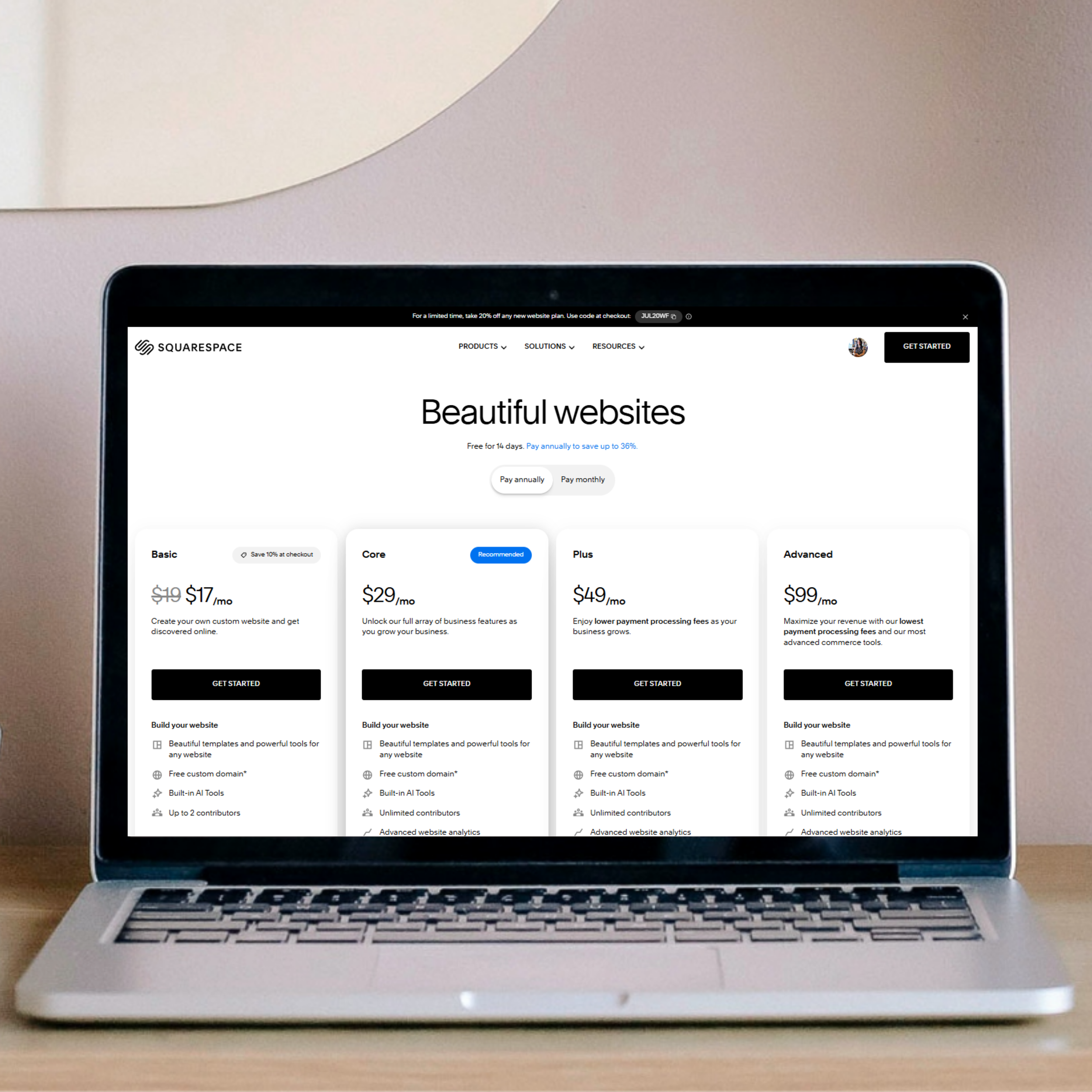
Where to find it in Squarespace: Pages → Edit Page → Image Block → Edit → Alt Text
What matters most: Alt text helps Google understand your images and boosts accessibility. It also helps your site show up in visual search results, which is becoming more important every year.
The Breakdown
Alt text tells Google what your image shows Clear descriptions help search engines understand your visuals.
Alt text supports accessibility Screen readers rely on alt text to describe images to users.
Write it like you are talking to a friend Simple, human language always works best.
Squarespace makes alt text easy to add Every Image Block has a dedicated alt text field.
Alt text helps with visual search Google Images and Pinterest rely heavily on accurate descriptions.
B — Backlinks: Why Other Websites Linking to You Matters
A backlink is when another website links to yours. Google sees this as a sign of trust. High quality backlinks help your SEO grow stronger and show search engines that your content is worth sharing.
Imagine holding a stack of glowing recommendations. Each one is another website pointing people toward you. That is what a backlink does for your site.
Where to check them: Google Search Console → Links
What matters most: Backlinks build trust with Google. Squarespace cannot create them for you, but your content, visibility, and brand presence absolutely can.
The Breakdown
Backlinks are trust signals When another site links to you, Google sees it as a vote of confidence.
Quality matters more than quantity A few strong backlinks from reputable sites are more powerful than dozens of weak ones.
You earn backlinks through value Helpful content, clear messaging, and strong brand presence naturally attract links.
Squarespace does not affect backlinks Your platform does not create or limit backlinks. Your strategy and visibility do.
You can monitor growth in Search Console Google shows who is linking to you, how often, and which pages they point to.
C — CSS: How Your Website Gets Its Visual Style
CSS is the part of your website that controls the look and feel. It is the design layer that lets you style things in a way Squarespace settings cannot. When you want something to feel more custom, more branded, or more intentional, CSS is where that happens.
Think of CSS as the visual personality of your site. It shapes your colors, spacing, buttons, fonts, animations, and all the tiny details that make your website feel like you instead of a template.
Where to find it in Squarespace: Design → Custom CSS
Where CSS Also Shows Up
Code Blocks
A Code Block is where you add small pieces of HTML, CSS, or JavaScript inside a page section. This is perfect when you want styling that applies only to one part of a page.
How to access it:
Open the page you want to edit
Click Edit
Click the plus (+) button to add a block
Choose Code Block
Paste your code
Use this when you want code to appear inside the content of a page.
Page Header Injection
Page Header Injection is where you add code that affects the entire page. This is ideal for CSS or JavaScript that needs to load before the page content.
How to access it:
Open the page
Click Settings
Select Advanced
Open Page Header Code Injection
Paste your code
Use this when you want page‑wide styling or scripts.
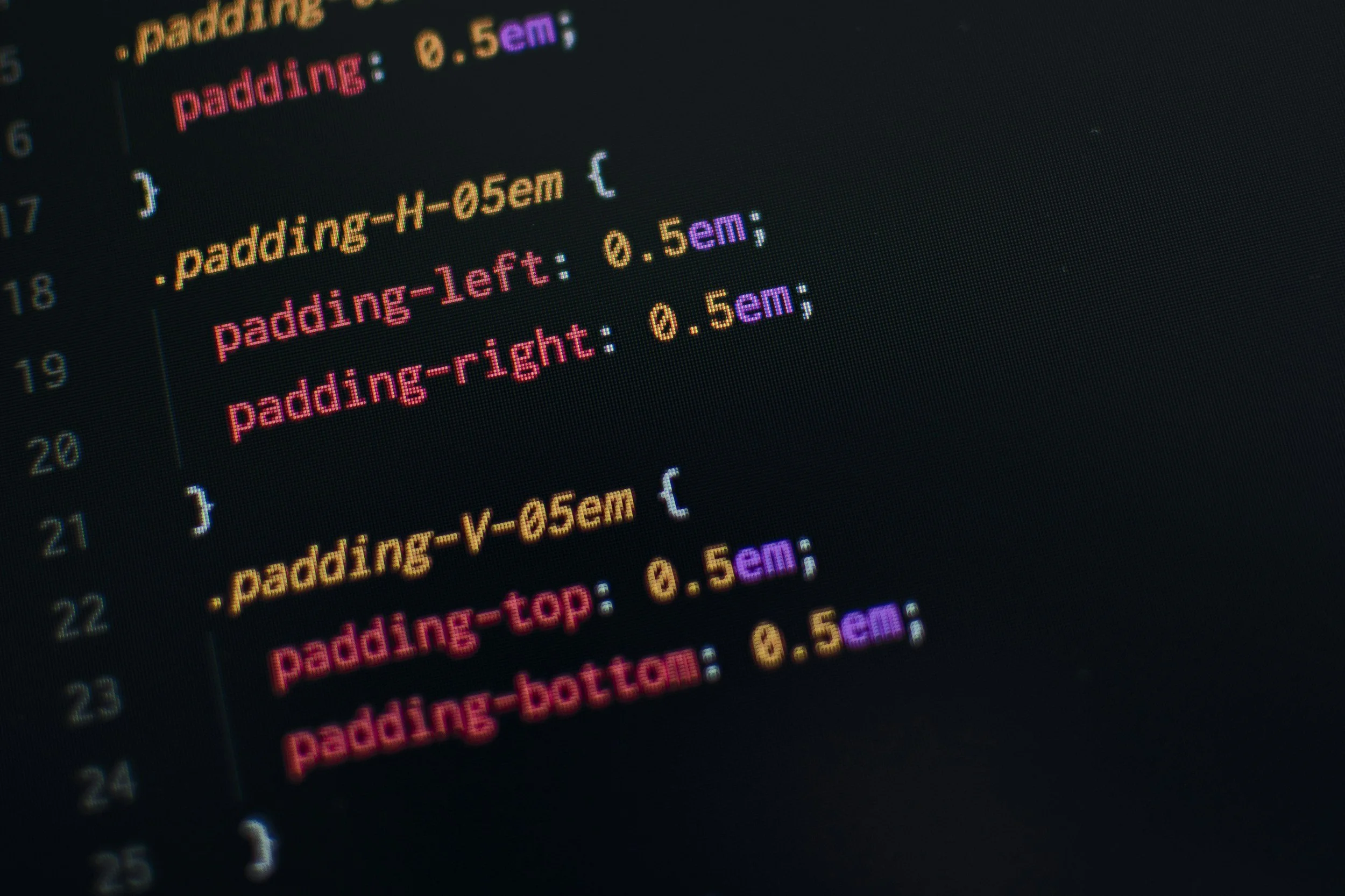
CSS gives you creative control, but it should be used with intention. Clean, simple CSS keeps your site fast and easy to maintain. Messy or excessive CSS can slow things down or create conflicts with Squarespace’s built‑in styles.
D — DNS: How Your Domain Connects to Your Website
DNS is the quiet backbone of your website. It connects your domain name to your actual site and tells the internet exactly where everything lives. When something goes wrong and your site suddenly disappears, DNS is usually the reason.
Think of DNS like the internet’s address book. It makes sure your domain knows where to go so people can reach your website without any confusion.
Where to find it in Squarespace: Settings → Domains → Select Domain → DNS Settings
What matters most: If your site goes down or your domain stops connecting, DNS is the first place to check. One small record can make a big difference.
The Squarespace Breakdown
Here is the simple way to understand how Squarespace handles DNS so it never feels confusing.
Squarespace can host your domain If you bought your domain through Squarespace, the DNS is already set up. No extra steps.
You can connect a domain from another provider If your domain lives on GoDaddy, Google Domains, Namecheap, or anywhere else, you will update the DNS records there.
Squarespace gives you the exact records you need When you connect a domain, Squarespace shows you the A records and CNAMEs to paste into your domain provider. No guessing.
DNS changes take time to update Sometimes it updates in minutes. Sometimes it takes a day. This is normal and called propagation.
If something breaks, DNS is the first place to look Missing records, expired domains, or incorrect entries are the most common reasons a site goes down.
E — Ecommerce: How You Sell Products and Services Online
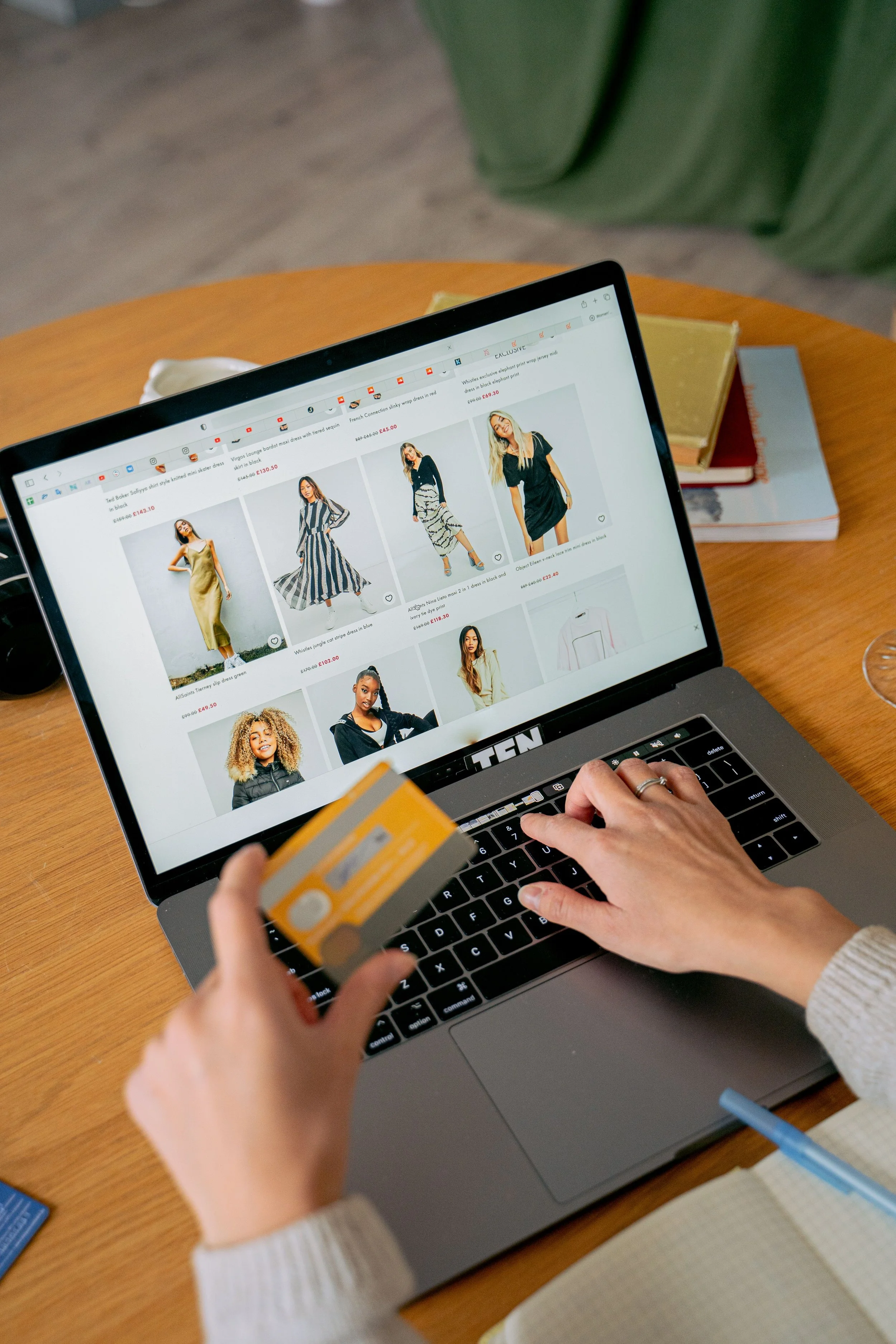
Photo Credit: AI25.Studio Studio
Ecommerce is simply selling products or services online. If you have a shop, a booking calendar, or digital products, you are already doing ecommerce. Strong website SEO helps people find what you sell and understand why it matters.
Ecommerce is the online version of setting up a booth at a craft fair, except you do not have to haul tables or pack your car. Your website does the work for you.
Where to find it in Squarespace: Commerce → Products or Scheduling → Services
Tip: Squarespace has built in ecommerce tools that are SEO friendly. Clear product descriptions help your items show up in search and make it easier for customers to buy.
The Breakdown
Ecommerce means selling online Products, services, bookings, and digital downloads all count.
Product descriptions matter Clear, helpful descriptions improve SEO and help customers make decisions.
Squarespace has built in SEO tools Titles, URLs, images, and product details all support search visibility.
Your shop structure affects SEO Organized categories and clean navigation help Google understand your store.
Scheduling counts as ecommerce Services, appointments, and classes all benefit from strong SEO.
F — Favicon: Your Website’s Tiny but Mighty Brand Marker

A favicon is your website’s profile picture, but make it micro influencer. It is the tiny icon that shows up in your browser tab and instantly makes your brand look polished and professional. Even though it is small, it creates a big first impression.
Your favicon helps people recognize your site at a glance. It builds trust, reinforces your brand, and keeps your website from looking unfinished.
How to Edit Your Favicon in Squarespace
Go to Home in your Squarespace dashboard
Click Design
Select Browser Icon
Upload your favicon image
Click Save
Upload a clean, simple icon
Check how it looks on mobile
Use a square image for best results
The Breakdown
A favicon builds brand recognition People spot your site quickly when they have multiple tabs open.
It makes your site look professional A missing favicon can make a site feel incomplete.
Squarespace makes it easy to upload You only need a small square image, usually your logo or a simple mark.
Keep it simple and clear Tiny icons need clean shapes and minimal detail to stay readable.
What Matters Most
A favicon builds trust and brand recognition. It is a small detail that makes a big difference in how polished your website feels.
G — Google Search Console
Google Search Console is the tool that shows you how Google sees your site. It helps you track performance, fix indexing issues, and understand what people search before they click on your pages.
Think of it like getting a progress report straight from Google.
Where it connects:
Submit your sitemap
Check indexing
See search queries
What matters most: Google Search Console helps you understand how your site performs in search and what to improve next.
H — HTML: The Structure That Holds Your Website Together
HTML is the IKEA instructions of your website. It can look confusing at first glance, but everything falls apart without it. HTML is the literal skeleton holding your site together. If your website were a baby, HTML would be the tiny little spine keeping it upright while it wobbles around learning how to stand. You do not always see it, you do not always think about it, but without it, nothing works.
HTML tells your browser what each piece of content is. Headings, paragraphs, images, buttons, links, forms. All of it starts with HTML.
Where you see it: Code Block Embed Block
The Breakdown
HTML is the structure It defines what each element on your site is supposed to be.
You only need small pieces Most Squarespace users never touch full HTML pages. You only add tiny snippets when needed.
Squarespace handles the heavy lifting The platform writes most of the HTML for you behind the scenes.
Code Blocks let you add your own Perfect for embeds, forms, widgets, or small custom elements.
How to Access CSS in Squarespace and Why It Matters
Your CSS panel is where all the cute, custom, glow up magic happens. It is the place that lets your site look less “template” and more “micro brand with a personality.”
Where to Find Your CSS in Squarespace
Go to Home in your Squarespace dashboard
Click Design
Select Custom CSS
Paste or edit your code
Save
Why Your CSS Panel Is Your Secret Design Superpower
Brand control CSS lets you change things Squarespace does not give you buttons for. Colors, spacing, animations, hover effects, all the fun stuff.
Better visual identity This is how you make your site feel like you instead of a default template.
More polished user experience Tiny tweaks like button styles, spacing, and mobile adjustments make your site feel smoother and more professional.
Creative freedom You can add neon glows, custom fonts, rounded corners, scroll effects, and all the little touches that make your site stand out.
Cleaner design CSS helps you fix weird spacing, align things better, and keep everything looking intentional.
I — Indexing: How Google Adds Your Pages to Search
Indexing is when Google adds your page to search results. If a page is not indexed, it cannot rank. Google Search Console is the best place to check this.
Indexing is basically Google taking attendance for your website. It is the digital version of roll call. Google shows up with its little clipboard like “Alt Text? Here. Homepage? Here. That random test page you forgot to delete? Unfortunately… also here.” If a page is not indexed, it is like a kid hiding in the bathroom during school pictures. Cute, but not helpful.
A simple way to picture indexing is Google adding your page to its giant library of search results.

Photo Credit: Ravi Roshan
How to Check Indexing in Google Search Console
This is the most accurate way to see if a page is indexed.
Go to Google Search Console
Click URL Inspection
Paste your page URL
Google will tell you if the page is indexed, not indexed, or has issues
This is the best method for checking individual pages.
The Breakdown
Indexing shows if Google can find you If a page is not indexed, it cannot appear in search results.
It helps you spot pages that need SEO love Unindexed pages often need better content, stronger structure, or clearer keywords.
Search Console gives you the full picture It shows errors, warnings, and reasons why a page might not be indexed.
Indexing confirms your site is healthy Regular checks help you catch issues early and keep your SEO strong.
J — JavaScript: The Movement and Magic Behind Your Website
JavaScript is your website’s secret sauce. It is the behind the scenes sparkle that lets your site do things the normal Squarespace settings cannot. JavaScript adds movement and interaction to your site. It powers sliders, pop ups, animations, and all the little touches that make your website feel more alive.
A simple way to picture JavaScript is to think of it as the movement layer. HTML is the structure, CSS is the style, and JavaScript is the personality that reacts, moves, and interacts.
Where JavaScript Appears in Squarespace
Code Injection
This is where you add JavaScript that affects your entire site or a full page.
How to access it:
Go to Home in your Squarespace dashboard
Click Settings
Select Advanced
Choose Code Injection
Paste your script
Use this for site wide features, tracking codes, or scripts that need to load before the page content.
Code Blocks
This is where you add JavaScript that applies only to one section or one part of a page.
How to access it:
Open the page you want to edit
Click Edit
Click the plus (+) button
Select Code Block
Paste your code
Use this for small widgets, embeds, or interactive elements inside a specific section.
The Breakdown
JavaScript adds interaction It makes your site feel dynamic instead of static.
It powers advanced features Sliders, pop ups, animations, and custom behavior all rely on JavaScript.
Squarespace supports small scripts You can add custom JavaScript through Code Injection or Code Blocks.
Use it intentionally Too much JavaScript can slow your site down, so add it only when it brings real value.
What Matters Most
JavaScript brings movement, personality, and interaction to your website. It is powerful, but it should be used with intention. A little goes a long way.
K — Keywords: The Words Your Audience Uses to Find You
Keywords are the “use your words” moment of SEO. They are the exact phrases people type into Google when they are trying to find something. Keywords help Google understand what your content is about and who should see it.
Keywords guide your SEO strategy. They show you what your audience cares about, what they search for, and how you can show up in front of them.
A simple way to picture keywords is to think of them as the bridge between your content and the people looking for it. They connect your ideas to real search behavior in a clear, human way.
Where Keywords Appear
Page titles
Headings
Body text
Meta descriptions
Image alt text
These are the places Google checks first when trying to understand your content.
The Breakdown
Keywords help Google understand your topic They tell search engines what your page is about.
Use keywords naturally Write like a human. Avoid stuffing or repeating phrases just to rank.
Choose phrases your audience actually searches Think about real questions, real problems, and real language.
Focus on clarity and intention Strong keywords match your content, your niche, and your expertise.
Lean into your niche buzzwords Personal experience, industry language, and specific details help you stand out.
What Matters Most
Use keywords in a way that feels natural and helpful. When your content is clear, intentional, and written for real people, Google understands it better and your SEO becomes stronger.
L — Landing Page: One Clear Goal, Zero Distractions
A landing page is the “one clear goal” moment of your website. Imagine we are sitting together and I am showing you a page with one purpose and zero distractions. That is a landing page. It is simple, focused, and built to guide someone toward one action.
Landing pages work because they remove noise. No extra links. No wandering. Just a clean path that helps your visitor make a decision.
How to Create a Landing Page in Squarespace
Go to Home in your Squarespace dashboard
Click Pages
Click the plus (+) to add a new page
Choose Blank Page
Name your page
Add clean, simple sections that support one goal
That is your landing page. No header navigation. No footer links. Just a clear path to one action.
Hide your header
Remove your footer
Use simple layouts
Where to Customize It
Page settings for your title and URL
Page layout for your structure
Sections for your content
Buttons for your call to action
What Matters Most
Landing pages convert better when they are simple and focused. Squarespace layouts make this easy by giving you clean sections, clear structure, and room to highlight one message at a time.
M — Meta Description: Your Friendly Google Preview
A meta description is basically the “back of the baby book” summary for your website. It is the short line under your page title in Google that helps people decide if they want to click. Write it like a warm invitation that makes someone feel welcome before they even land on your page.
A good meta description is clear, friendly, and helpful. It gives people a reason to choose you.
Where to Edit Your Meta Description in Squarespace
Here is the exact path so it never feels confusing:
Open your Squarespace dashboard
Click Pages
Hover over the page you want to edit
Click the gear icon to open Page Settings
Select SEO
Find the Description box
Write your meta description
Click Save
This is where you control how your page appears in Google search results.
The Breakdown
Meta descriptions help people decide to click They act like a friendly preview of your page.
Write them like an invitation Warm, clear language works best.
Squarespace gives you a simple SEO panel Every page has its own description field.
Good descriptions increase clicks Clear summaries help your content stand out in search results.
Tip
A good meta description increases clicks. Keep it friendly, clear, and helpful. Think of it as your chance to say, “Here is exactly what you will find, and you are going to love it.”
N — Navigation Menu: The Map That Guides Your Visitors
Your navigation menu is the part of your site that keeps visitors from crawling into the wrong room. It helps people move around your website with confidence. When your navigation is simple and clear, your visitors feel grounded and your SEO gets a boost.
Think of your navigation as the map that shows people exactly where to go without getting lost.
How to Edit Your Navigation Menu in Squarespace
Here is the full, detailed path so it feels easy and intuitive:
Open your Squarespace dashboard
Click Pages
Look at the left sidebar
Find the section labeled Main Navigation
Drag pages up or down to reorder them
Drag a page slightly to the right to create a dropdown
Click the gear icon on any page to rename it or change its URL
Add a new page by clicking the plus (+) button
Remove a page by dragging it into Not Linked or deleting it
Your Main Navigation controls the links that appear at the top of your website.
The Breakdown
Clear navigation improves user experience Visitors stay longer when they can find what they need.
Simple menus help your SEO Google understands your site better when your structure is clean.
Squarespace makes editing easy Drag, drop, rename, reorder. No coding needed.
Use dropdowns sparingly Too many layers can overwhelm visitors.
Keep your top menu short Five to seven items is usually the sweet spot.
What Matters Most
Clear navigation improves user experience and SEO. Squarespace makes it easy to drag and reorder pages so your visitors always know where to go.
O — On Page SEO: The Simple Steps That Help Your Site Rank
On page SEO is everything you do on your website to help it rank. It includes your keywords, headings, images, and internal links. These small improvements add up over time and make a real difference in how Google understands your content.
Think of on page SEO like a checklist. Each small step builds toward stronger results.
Where to Optimize On Page SEO in Squarespace
Here is the full breakdown so you always know where to go:
Page Titles
Your page title tells Google what the page is about.
How to edit it:
Go to Pages
Hover over your page
Click the gear icon
Go to SEO
Edit the SEO Title
Save
SEO Descriptions
This is your friendly preview in Google search results.
How to edit it:
Go to Pages
Click the gear icon
Select SEO
Add your description
Save
Headings
Headings help Google understand your structure and help readers skim.
How to edit them:
Open your page
Click Edit
Add a Text Block
Highlight your text
Choose Heading 1, 2, or 3
Use one H1 per page. Use H2s and H3s to organize your ideas.
Image Alt Text
Alt text describes your images for Google and for accessibility.
How to edit it:
Click your Image Block
Select Edit
Add your Alt Text
Save
Internal Links
Internal links help Google understand how your pages connect.
How to add them:
Highlight text
Click the link icon
Choose a page on your site
Save
Internal links keep people exploring your content and help Google crawl your site.
The Breakdown
On page SEO helps Google understand your content Clear structure and keywords make your pages easier to rank.
Small steps add up You do not need to overhaul everything at once.
Squarespace gives you a clean foundation The platform is already built with SEO structure in mind.
Your content does the heavy lifting Helpful writing, clear headings, and strong keywords matter most.
What Matters Most
Squarespace gives you a clean structure that supports strong on page SEO. When you pair that with clear writing, helpful content, and simple optimization steps, your site becomes easier for both people and Google to understand.
P — Page Speed: How Fast Your Site Loads
Page speed is how fast your site loads. A fast site keeps people engaged. Slow sites lose visitors quickly. It works the same way a slow checkout line does. If it takes too long, people leave.
Your goal is to make your site feel quick, smooth, and easy to use.

Photo Credit: Oliver Morgan Media
Where to Improve Page Speed in Squarespace
Here is the detailed breakdown so you know exactly what to adjust:
Compress Images
Large images are the number one reason a site slows down.
How to fix it:
Resize images before uploading
Aim for 1500 to 2500 pixels wide
Save as JPG for photos and PNG for graphics
Reupload the optimized version
Squarespace will still compress them, but starting smaller helps a lot.
Remove Unused Blocks
Extra sections, hidden blocks, and old layouts can slow down your page.
How to fix it:
Open your page
Click Edit
Delete blocks you are not using
Remove empty spacers or duplicate sections
Clean pages load faster and feel more intentional.
Limit Animations
Animations look fun, but too many can slow down your site.
How to fix it:
Use animations sparingly
Avoid stacking multiple effects
Keep movement simple and purposeful
A little motion is cute. Too much becomes heavy.
The Breakdown
Page speed affects user experience Fast sites keep people exploring. Slow sites push them away.
Squarespace is already optimized The platform handles caching, hosting, and core performance for you.
Your design choices still matter Images, animations, and layout decisions have the biggest impact.
Small improvements make a big difference You do not need to overhaul everything. Just tidy up the heavy parts.
What Matters Most
Squarespace is already optimized for speed, but your images and design choices still matter. Clean pages, smaller images, and fewer animations help your site load quickly and keep visitors engaged.
Q — Query: What Someone Types Into Google
A query is what someone types into Google. It is the exact question, phrase, or thought your audience is searching for. Your content should answer those questions clearly and helpfully. This is the heart of people first SEO.
A query follows the same pattern as a real question someone types into a search bar. When your content matches that question, Google knows you are the right answer.
Where Queries Matter Most
Blog posts Blogs are perfect for answering specific questions your audience is searching for.
Service pages These pages should match the problems people are trying to solve.
Product descriptions Clear descriptions help your products show up for the right searches.
The Breakdown
Queries show you what people want They reveal real language, real needs, and real intent.
Your content should answer those questions This builds trust and helps you rank.
People first SEO starts with queries When you write for humans, Google understands you better.
Queries guide your content strategy They help you decide what to write, what to explain, and what to highlight.
What Matters Most
Your content should answer the questions your audience is searching for. When you write with real queries in mind, your SEO becomes clearer, stronger, and more human.
R — Responsive Design: Your Site on Every Screen
Responsive design means your site looks good on every device. Most people browse on their phones, so your website needs to adjust itself automatically. Squarespace templates are built to do this for you.
Responsive design behaves a lot like water filling a container. Your site shifts, stretches, and rearranges itself to fit whatever screen it lands on.
Where Responsive Design Lives in Squarespace
Built into every template You do not have to turn anything on. It is automatic.
Sections adjust themselves Stacked layouts, mobile spacing, and image ratios all adapt.
Buttons and text resize Squarespace scales your content so it stays readable.
Images crop smartly The platform keeps the most important part of your image visible.
The Breakdown
Responsive design keeps your site usable People stay longer when your site feels easy on their phone.
Most traffic is mobile Your site needs to shine on small screens first.
Squarespace handles the heavy lifting You get mobile friendly design without coding.
Your content choices still matter Clean layouts, short text blocks, and simple sections look best everywhere.
What Matters Most
Most people browse on their phones. Squarespace handles responsiveness for you, and your job is to keep your content clean, simple, and easy to read on any screen.
S — SEO: Helping Google Understand Your Site
SEO stands for search engine optimization. It is the practice of helping your site show up in search results. Good SEO brings in steady, long term traffic and helps the right people find you.
SEO is basically helping Google understand your site so it can send people your way. When your content is clear and helpful, Google knows exactly who to show it to.
Where to Manage SEO in Squarespace
Page SEO Settings
Edit your page title, meta description, and URL slug.
Site SEO Settings
Set your site title, site description, and search visibility.
Content Structure
Use clear headings, keywords, internal links, and alt text.
Amazing SEO Hacks for Squarespace
These are the little tricks that make a big difference.
1. Add Keywords to Your Page Title and First Heading
Google reads your title and your first H1 like the “name tag” of your page.
Hack: Use your main keyword in both places naturally.
Keyword placement tips
2. Use the Page Description Field for Extra Context
Squarespace lets you add a page description separate from your SEO description.
Hack: Use it to reinforce your keywords and give Google more clarity.
Page description strategy
3. Rename Your Images Before Uploading
Google reads file names.
Hack: Instead of “IMG_2837.jpg,” use “kansas_city_brand_photography.jpg.”
Image naming tips
4. Add Internal Links to Boost Page Authority
Linking your own pages together helps Google understand your site structure.
Hack: Link from high traffic pages to the ones you want to rank.
Internal linking strategy
5. Use the Blog Excerpt Field for SEO
Squarespace blog excerpts show up in multiple places.
Hack: Write a keyword rich, human friendly excerpt for every post.
Blog excerpt optimization
6. Turn On “Search Engine Visibility” for Your Whole Site
Some sites accidentally stay hidden.
Hack: Go to Settings → SEO → Make sure “Hide from search engines” is OFF.
Visibility check
7. Use Summary Blocks to Strengthen Internal Linking
Summary Blocks pull content from other pages and create natural connections.
Hack: Use them on your homepage or service pages to highlight blogs or products.
Summary block SEO tips
8. Add FAQ Sections for Zero Click Search Protection
Google loves clear Q and A content.
Hack: Add a simple FAQ section to your services page using real queries.
FAQ SEO strategy
What Matters Most
Good SEO brings long term traffic. Squarespace gives you a strong foundation, and these small hacks help your site stand out even more.
T — Title Tag: Your Clickable Google Headline
Your title tag is the clickable headline in Google. It tells both people and search engines what your page is about. Make it clear, helpful, and easy to understand at a glance.
Picture yourself scrolling Google. You are choosing what to click. The title tag is the headline that catches your eye and makes you decide, “Yes, this is the one.”
Where to Edit Your Title Tag in Squarespace
Here is the exact path so it feels simple and stress free:
Go to Pages in your Squarespace dashboard
Hover over the page you want to edit
Click the gear icon to open Page Settings
Select SEO
Edit the SEO Title field
Click Save
This is the title that appears in Google search results, not the title that appears on your actual page.
The Breakdown
Title tags help Google understand your page Clear titles help search engines know exactly what your content covers.
They help people choose your page A strong title tag increases clicks and builds trust.
Use keywords naturally Include your main keyword in a way that feels human and readable.
Squarespace makes editing simple Every page has its own SEO panel for easy updates.
What Matters Most
Clear titles help both people and search engines understand your page. When your title tag is simple, helpful, and keyword friendly, your page becomes easier to find and more inviting to click.
U — URL Slug: The Clean Part of Your Link
A URL slug is the part of your link that comes after the slash. Short and simple slugs help with website SEO and make your links easier to read, easier to share, and easier for Google to understand.
Visualize it as the clean, simple label at the end of your link. No random numbers. No symbols. Just clear words that match your page.
Where to Edit Your URL Slug in Squarespace
Here is the exact path so it feels easy and stress free:
Go to Pages in your Squarespace dashboard
Hover over the page you want to edit
Click the gear icon to open Page Settings
Select General
Find the URL Slug field
Type your short, simple slug
Click Save
This is the part of your link that appears in the browser and in Google search results.
The Breakdown
Short slugs help your SEO Clean links are easier for Google to understand.
Use real words, not symbols Avoid numbers, punctuation, or anything confusing.
Match your slug to your page topic Keep it simple and descriptive.
Squarespace makes editing easy Every page has its own slug field.
What Matters Most
Short slugs help your SEO and make your links easier to share. Clean, simple URLs look more professional and help both people and Google understand your content.

Photo Credit: Олександр К (I couldn’t resist)
V — Viewport: How Your Site Fits on Mobile Screens
The viewport controls how your site displays on mobile. It tells the browser how wide the screen is and how your layout should scale. This is a key part of technical SEO because it affects how readable and usable your site feels on phones and tablets.
Think of the viewport like the window someone looks through when viewing your site on mobile. If the window is set correctly, everything fits. If it is not, your site feels zoomed out, tiny, or hard to use.
Where the Viewport Lives in Squarespace
Built into every template Squarespace automatically includes the correct viewport tag for mobile.
No manual setup needed You do not have to add code or adjust settings.
Responsive sections adjust automatically Your layout shifts and scales based on the device size.
The Breakdown
Viewport settings help your site scale correctly This keeps your content readable on phones and tablets.
It is part of technical SEO Google checks for proper mobile scaling when ranking your site.
Squarespace handles it for you The platform includes the correct viewport tag by default.
Your content choices still matter Clean layouts, short text blocks, and simple sections look best on mobile.
What Matters Most
Viewport settings help your site scale correctly on phones and tablets. Squarespace handles the technical part for you, and your job is to keep your content clean, readable, and mobile friendly.
W — Web Hosting: The Home Your Website Lives In
Web hosting is where your site files live. It is the home that holds everything your website needs to exist. Squarespace includes hosting for you, which means you never have to deal with servers, settings, or complicated tech.
Imagine stepping into a home where all your website files live. That is your hosting. Safe, organized, and always there when someone visits your site.
Where Hosting Lives in Squarespace
Included automatically You do not have to install or configure anything.
Managed by Squarespace Security, updates, and performance are handled for you.
Built for speed and stability Your site loads quickly and stays online.
No separate hosting account needed Everything is bundled into your subscription.
The Breakdown
Hosting keeps your site fast Good hosting means smooth loading and fewer issues.
Hosting keeps your site secure Squarespace handles SSL certificates and protection.
Hosting keeps your site online Reliable servers mean your site is always available.
Squarespace handles the tech You get the benefits without the maintenance.
What Matters Most
Squarespace hosting is fast, secure, and reliable. You never have to manage servers or worry about technical setup. Your website has a safe, stable home built right in.
X — XML Sitemap: The Map Google Uses to Find Your Pages
An XML sitemap is a file that lists every page on your website. It helps Google find, crawl, and understand your content. Squarespace creates this automatically, so you never have to build or upload anything yourself.
Think of your XML sitemap as a map that shows Google every room in your website house. Nothing gets missed. Nothing gets lost.
Where to Find Your XML Sitemap
Just type this into your browser:
For example: easyinnkc.com/sitemap.xml
This file updates itself every time you add, remove, or rename a page.
How sitemaps help SEO
How Google crawls your site
Squarespace sitemap basics
The Breakdown
Sitemaps help Google find your pages faster Especially new pages, hidden pages, or pages with fewer links.
Squarespace generates it automatically No setup. No code. No maintenance.
Google uses it to understand your structure Clean structure helps your SEO.
It updates itself Every time you publish or change a page.
What Matters Most
Squarespace generates your XML sitemap automatically so Google can crawl your site easily. It is one of the simplest but most powerful technical SEO tools you have.
Y — YouTube SEO: Helping Your Videos Get Seen
YouTube SEO helps your videos rank higher. It includes your title, description, keywords, captions, and thumbnail. When these pieces work together, your video becomes easier to discover and more likely to show up in search results.
Pretend you are stepping into this moment. Your video is sitting on YouTube waiting to be discovered. YouTube SEO is the spotlight that helps it get seen.
Where YouTube SEO Connects to Squarespace
Embed Block Add YouTube videos directly to your pages.
Video Block Display videos with clean layouts and custom settings.
Blog posts Embedding videos in blogs boosts engagement and keeps people on your site longer.
Simple YouTube SEO Tips
Use keywords in your video title Make it clear what your video is about.
Write a helpful description Include keywords and a short summary.
Add accurate captions Captions help accessibility and improve ranking.
Choose a strong thumbnail Thumbnails influence clicks more than almost anything else.
Link back to your website Bring viewers from YouTube to your Squarespace site.
The Breakdown
YouTube is the second largest search engine Optimizing your videos helps you reach a bigger audience.
Videos boost your website SEO Embedded videos increase time on page and engagement.
Squarespace makes embedding simple No coding needed.
Optimized videos bring new traffic YouTube becomes another doorway into your brand.
What Matters Most
Optimized videos can bring new traffic to your website and help your content rank. YouTube SEO is one of the easiest ways to expand your reach and connect your video content to your Squarespace site.
Y — YouTube SEO: Helping Your Videos Get Seen
YouTube SEO helps your videos rank higher. It includes your title, description, keywords, captions, and thumbnail. When these pieces work together, your video becomes easier to discover and more likely to show up in search results.
Pretend you are stepping into this moment. Your video is sitting on YouTube waiting to be discovered. YouTube SEO is the spotlight that helps it get seen.
Where YouTube SEO Connects to Squarespace
Embed Block Add YouTube videos directly to your pages.
Video Block Display videos with clean layouts and custom settings.
Blog posts Embedding videos in blogs boosts engagement and keeps people on your site longer.
Simple YouTube SEO Tips
Use keywords in your video title Make it clear what your video is about.
Write a helpful description Include keywords and a short summary.
Add accurate captions Captions help accessibility and improve ranking.
Choose a strong thumbnail Thumbnails influence clicks more than almost anything else.
Link back to your website Bring viewers from YouTube to your Squarespace site.
The Breakdown
YouTube is the second largest search engine Optimizing your videos helps you reach a bigger audience.
Videos boost your website SEO Embedded videos increase time on page and engagement.
Squarespace makes embedding simple No coding needed.
Optimized videos bring new traffic YouTube becomes another doorway into your brand.
What Matters Most
Optimized videos can bring new traffic to your website and help your content rank. YouTube SEO is one of the easiest ways to expand your reach and connect your video content to your Squarespace site.
Z — Zero Click Searches: Showing Up Even When People Do Not Click
Zero click searches happen when someone searches on Google and gets the answer right on the results page. They never click through to a website, but your content can still show up, still build trust, and still position you as the expert.
Think of it like waving from the front porch. They may not come inside, but they still see you, remember you, and recognize your brand the next time they need something.
Zero click content includes things like featured snippets, quick answers, definitions, and FAQs.
Where Zero Click SEO Connects to Squarespace
FAQ sections
Google loves clear questions and answers. FAQ sections are one of the easiest ways to show up in zero click searches because Google can lift your exact Q and A and place it directly in search results. Short, direct answers help Google understand your content fast and match it to real search queries.
Strong headings
Clean structure helps Google pull the right info. Headings act like signposts that tell Google what each section is about. When your headings are clear and keyword friendly, Google can understand your content faster and decide what to feature.
Short, clear definitions
Perfect for snippet style answers. Google loves one to two sentence explanations because they are easy to scan and easy to lift into featured snippets. These tiny definitions help you show up even when people do not click.
Blog posts with scannable sections
Google can lift your content into search results. When your blog is broken into clean, skimmable sections, Google can understand each part separately. This increases your chances of having individual paragraphs, lists, or definitions featured in search results.
The Breakdown
Zero click searches are rising People want fast answers.
You can still win visibility Even without the click.
Squarespace layouts make this easy Clean sections help Google understand your content.
Short answers perform best Think one to two sentence clarity.
What Matters Most
Zero click searches help your content show up even when people do not click. When you write clear, helpful answers, Google can feature your content and bring more eyes to your brand.
Final Thoughts
Website SEO does not have to feel confusing. Once you understand the language, you start to feel more confident, more capable, and way more in control of your online presence. Keep this guide close whenever you need a quick reminder or a little boost of clarity.
And honestly, if you ever catch yourself humming the ABCs while updating your site, just know you are not alone. I am right there with you, singing A is for Alt Text, B is for Backlinks, C is for CSS, and D is for Do_not_panic. Because building a website is a lot like motherhood. You learn one letter at a time, you repeat things until they stick, and eventually it all starts to feel natural.
You got this.
Catch up on All My Blogging Related Blog Posts Here.
You’ll Also Love


Hello, world! I’m Lourin. I’m a Kansas City mama, creative, and website designer who loves helping small businesses and community leaders show up with clarity and confidence. Here on the blog you can read about my favorite things, like small business growth, simple website tips, community stories, and the behind‑the‑scenes of building a life and business I love. So glad you’re here!

Business owners often look for the best website platform because they want something reliable, simple to manage, and strong enough to support real growth. Squarespace and Showit both promise creative freedom, but the experience of running your business on each platform feels very different. Squarespace gives you an all‑in‑one system that handles hosting, SEO, security, blogging, ecommerce, and mobile design without extra tools. Showit offers flexibility, but it also brings more steps, more plugins, and more long‑term maintenance. This guide breaks down the real differences so you can choose the platform that protects your time, supports your brand, and keeps your website running smoothly as your business expands.